
How to Preserve Dashcam Footage After a Car Accident Before It Gets Erased
How to Preserve Dashcam Footage After a Car Accident Before It Disappears
Your dashcam may have captured the single most useful clip of your crash, and it is quietly working to erase it. Every dashcam runs on loop recording, which means that once the memory card fills up, the oldest video gets replaced by new video. Keep driving, keep the camera running, and the moment you need most can vanish without a warning. The good news is that saving it is simple when you act in the right order. This guide shows you how to save dashcam footage after an accident, from locking the clip to exporting the original file and backing it up safely, with no legal jargon and no gear you do not already own.
Why Dashcam Footage Disappears So Fast
Dashcams are built to record nonstop, so they treat storage like a revolving door. When the card is full, the camera deletes the oldest file and records over it. Manufacturers add protective features such as impact sensors, but those are not foolproof. If the camera does not register the crash as strong enough, or the sensor is set too low or too high, the clip may never be locked. Even a flagged clip can eventually be overwritten if the camera keeps running and the protected folder fills up.
How quickly this happens depends on your card size and video quality. A high resolution camera fills a card much faster than a basic one, which shortens the loop. Once footage is overwritten, it is generally considered gone for good. That is why the first minutes after a crash matter more than anything you do later.
The First Ten Minutes: Lock It, Stop It, Secure It
Your own safety and medical needs always come first. Once everyone is safe and you are out of traffic, use this order:
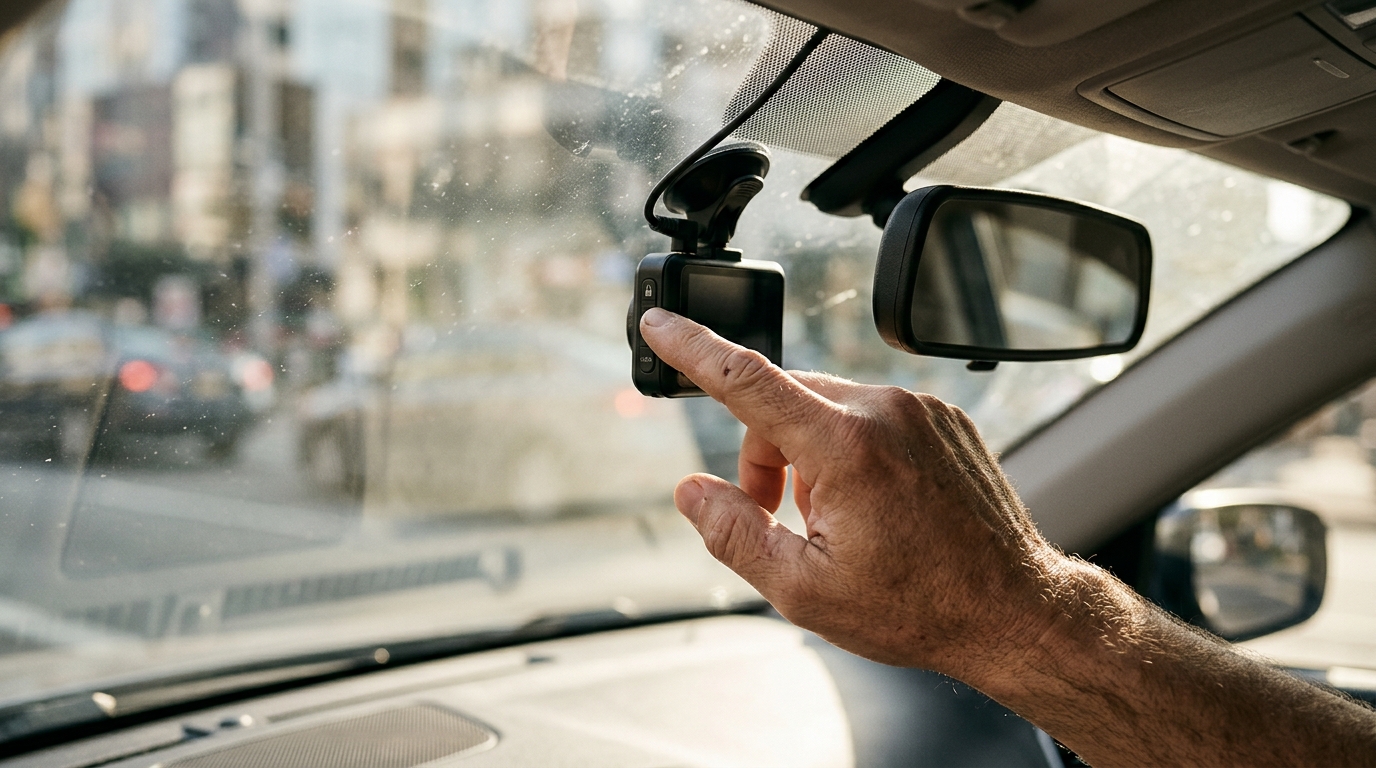
Press the lock or emergency button. Many cameras have a dedicated button, and others let you tap a save option in the companion app. This moves the current clip into a protected event folder that normal loop recording should not touch.
Stop the recording. If you are unsure the clip locked, power the camera down. A loop cannot overwrite anything if the camera is not writing new video. Use the camera's own power off option or turn off the car, depending on how yours is wired.
Note the time. Check your phone clock and jot down the time of the crash. This will help you find the right file later.
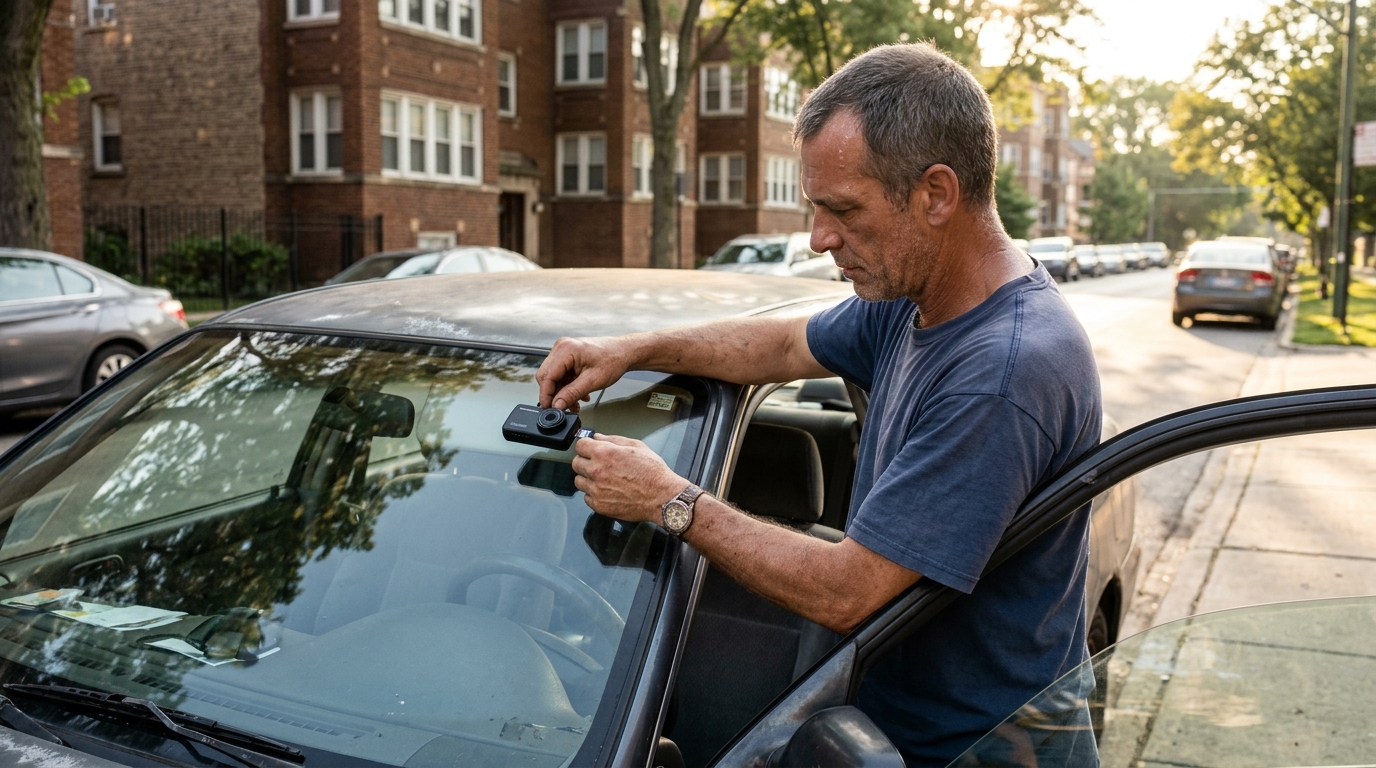
Remove the card safely. Wait until the camera is fully powered down, then take out the memory card and keep it somewhere secure, such as a zip bag in your wallet or glove box.
Insert a spare card if you have one. This lets the camera keep working without risking the card that holds your evidence.
If you cannot do all of this at the scene, do as much as you safely can. Locking the clip and stopping the camera are the two moves that matter most.
Do Not Keep Using the Same Card
It is tempting to put the card back in and carry on with your week. Resist that urge. Every new minute recorded is a chance for the camera to write over the footage you are trying to protect. Treat the card like a piece of evidence and set it aside until you have copied its contents. Even if you think the clip is locked, make your copies first and test them afterward.
How to Export the Footage Correctly
Exporting is more than dragging one file to your desktop. Follow a method that preserves the original:
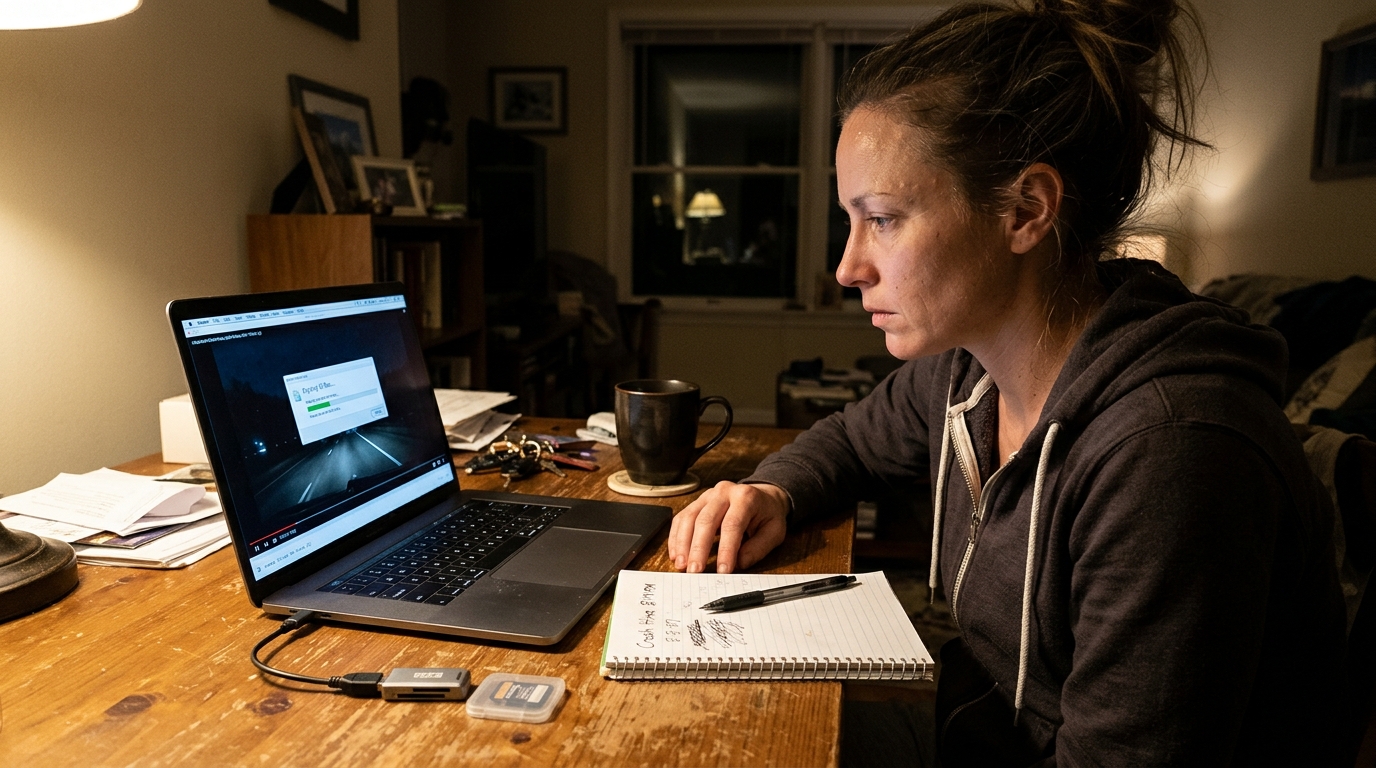
Copy, do not move. Connect the card to a computer with a card reader, or use the camera's app to download the file. Make sure you copy files instead of cutting them.
Look in the right folder. Locked clips often sit in a separate folder labeled event, emergency, or something similar. If you cannot find it, check your manual or the manufacturer's website for the file structure.
Grab a generous window. Export the clip that covers the crash plus a buffer, ideally about 30 seconds before and 30 seconds after. Also keep the full original file, since trimmed versions can leave out details.
Do not edit the original. If you want a shortened version for convenience, make it from a duplicate and label it clearly.
Check the playback. Open the copied file and confirm that the video and audio play correctly all the way through.
If your camera embeds GPS data or a date and time stamp, leave those settings as they are. They can help you show when and where the footage was recorded.
Back It Up in More Than One Place
One copy is not a plan. After exporting, make at least two more copies and store them in different locations. A smart routine looks like this:
Your computer, in a folder named with the crash date
Cloud storage that you can reach from any device
An external drive or a second phone, kept away from the first copy
The original memory card, untouched and labeled
Keep the original card even after you have verified your backups. If a question ever comes up about a file, having the source card can help. Avoid renaming the original file, since a changed name can make it harder to trace.
Write Down the Details While You Remember
Footage tells part of the story, but small details fade quickly. In a short note saved alongside the video, record the date, the exact time of the crash, the location, which camera captured it (front or rear), and the file names you exported. Add the card brand and size, and the time you removed it. This takes two minutes and makes it far easier to explain your footage to anyone who asks. Stick to what you observed and keep opinions out of it. This guide covers saving footage, not what it proves or whether it can be used in any legal setting, so if you have questions about that, speak with your insurer or a licensed attorney.
What If the Footage Is Missing or Corrupted?
Do not panic, and do not keep recording on the card. The data may still physically exist until new data replaces it, according to Nexar's guide to recovering dashcam footage. Remove the card, stop using it, and try a reputable file recovery program or ask the camera maker for help. Results are never guaranteed, and the sooner you act, the better your odds.
Also check whether your camera backed anything up to a cloud service or companion app. Some models upload event clips automatically, which can be a lifesaver if the card is damaged in the crash.

Protect the Camera When Your Car Gets Towed
Footage can be lost in the shuffle when a vehicle is moved. Before your car leaves the scene, power down the camera, remove the card if you safely can, and take it with you. If the camera is hardwired and you cannot reach it, tell the operator so it does not get yanked or knocked loose. Immediate Response Towing can help move your car safely across Chicago, and the accident recovery towing page explains how recovery works after a collision. Remember that the card often matters more than the car itself, since a damaged vehicle can be replaced but a lost clip cannot.
Quick Habits That Prepare You for Next Time
You can improve your odds long before any accident. Use a high endurance memory card made for constant recording, and replace it on schedule, since cards wear out. Format it occasionally using the camera's own menu. Test the lock button so you know where it is by feel. Check that the date and time are correct, and review your impact sensor setting so it triggers on real collisions without locking every pothole.
The Bottom Line
Saving dashcam footage comes down to speed and order. Lock the clip, stop the recording, remove the card, copy the original, and back it up in several places. Then write a short note with the time and file names. Do those things within the first day and you will have a clean, complete record, instead of an empty card and a missed opportunity. A few calm minutes after a crash can protect the evidence that matters most.